How to Back Up Your Phone Before a Repair — A Simple Guide for Coburg Residents
Step-by-step guidance for iPhone and Android users in Coburg and nearby suburbs on backing up phones, photos and app data before screen, battery or water-damage repairs so you can hand over your device with confidence.
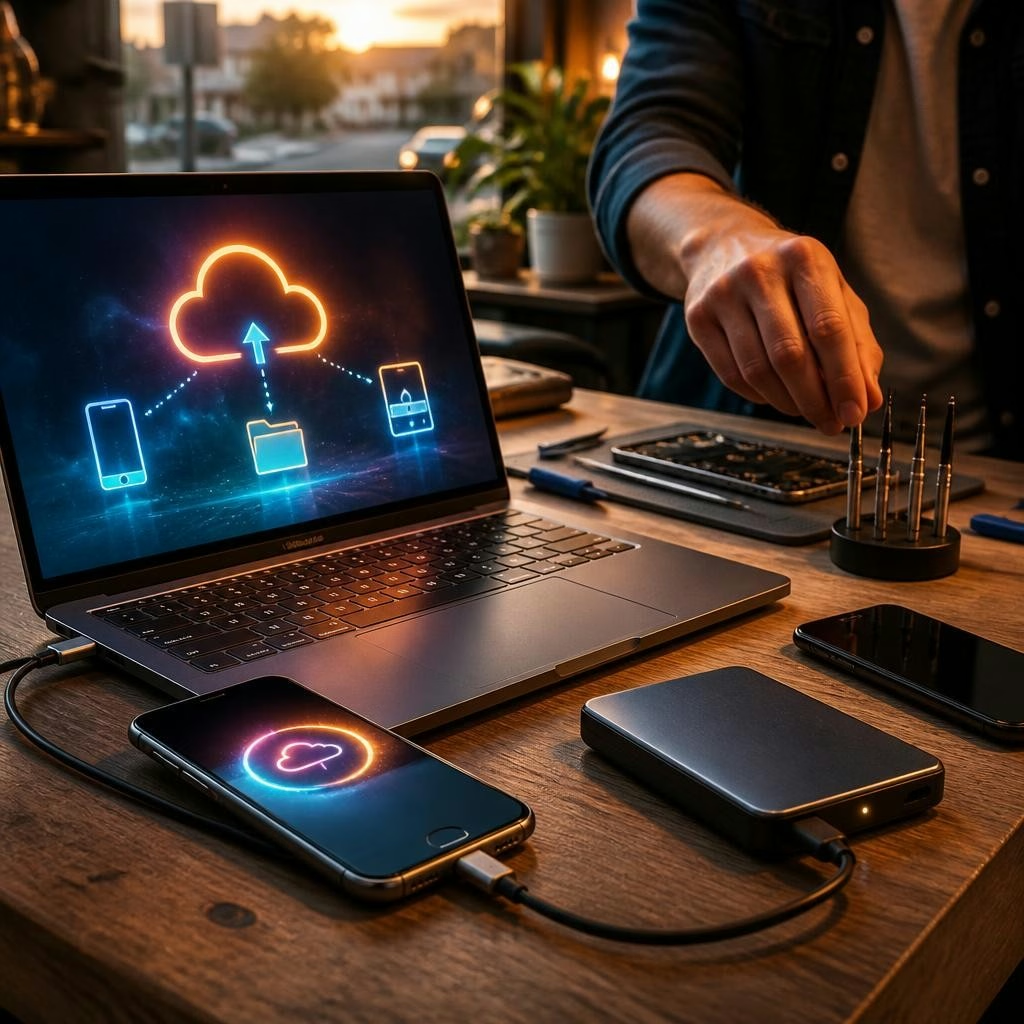
Why backing up matters before any repair
Repairs—especially screen replacements, battery swaps, and water-damage work—can require components to be replaced or internal tests that risk data loss. Backing up your phone first ensures you don’t lose photos, messages, app data or settings if something unexpected happens. At local repair shops like Zee Mobi Solutions in Coburg (375 Sydney Road), technicians are experienced and fast, but a recent customer review noted the shop as one of the best places to fix iPhones in the area—still, a quick backup is the safest step before you hand your device over.
A quick pre-drop-off checklist
Before you leave your phone at the shop, take these simple steps: fully charge the battery or bring the charger; remove any SIM or microSD cards and store them safely; write down or securely store your device passcode and account passwords; remove cases and accessories; and note the exact problems you're seeing (screen cracks, charging issues, water exposure, software errors). Ask the technician whether they will need your passcode or to sign into the device for diagnostics—many repairs are quick, but policies vary.
Backing up an iPhone using iCloud (fast and wireless)
iCloud is the easiest on-device option. Connect to Wi‑Fi, open Settings, tap your name > iCloud > iCloud Backup, then tap Back Up Now. Wait until the backup completes before handing the phone in. Check that you have enough iCloud storage—if not, temporarily free space or back up to a computer instead. iCloud will back up most settings, app data and photos if iCloud Photos is enabled; verify important items (photos, health data, messages) are included in your backup settings.
Backing up an iPhone to a Mac or PC (complete backup)
For a fuller backup, connect your iPhone to a Mac (Finder on macOS Catalina+ or later) or to iTunes on older macOS/Windows. Trust the computer when prompted, select the device, choose to back up all data on the iPhone to the computer, and enable encryption if you want passwords and Health data saved. Click Back Up Now and wait for completion. Store the computer in a secure place while the backup is on it, and note where the backup file is kept in case you need it later.
Backing up Android phones with Google (common method)
Most Android phones can back up to your Google account. Open Settings and search for Backup (often under System, Accounts or Google), turn on Back up to Google Drive, then tap Back up now. This typically saves app data, contacts, call history, SMS and device settings; exact items vary by manufacturer. Make sure the correct Google account is selected, and that you’re on Wi‑Fi. If your phone maker offers their own cloud backup (for example Samsung Cloud), consider using that as an additional copy.
Local Android backups and file transfers
For photos, videos or large files, copying data to a computer via USB is fast and reliable: connect the phone, select file transfer mode, and copy the DCIM and other important folders. Alternatively, use an SD card (remove it and keep it safe) or a PC backup tool from your phone’s maker. Remember that some app data (like certain game progress) may not transfer without a specific cloud save—check each app’s backup options before repair.
Backing up WhatsApp, photos and other app data
WhatsApp has its own backup setting: open WhatsApp > Settings > Chats > Chat backup and back up to iCloud (iPhone) or Google Drive (Android). For photos, enable iCloud Photos or the Google Photos backup app and confirm that your recent photos are synced. If you prefer a manual copy, export important albums or transfer them to a computer or external drive. For other critical apps (banking, two‑factor apps) confirm how they restore; for 2FA, record recovery codes or ensure you can re-register after repair.
Security tips for backups and handing over your device
Encrypt backups where possible so passwords and sensitive data stay protected. Keep backup files on a secure device and do not share account credentials in insecure messages. When you hand your phone to a technician, ask whether they need your passcode and whether they will sign you out of accounts; many repairs do not require removing account protections, but procedures vary. Also tell the technician about any water damage or unusual symptoms so they can take appropriate care.
After the repair: verify and restore
When you get your device back, check the repair work and then verify your data. If anything is missing, restore from the backup you made: iCloud, Google restore flow, or restore from a Finder/iTunes backup. Test key apps, photos, messages and call functionality before leaving the shop. If you used an SD card or removed the SIM, reinsert them and test. If problems persist after repair, contact the shop promptly to report what you see and reference any diagnostic notes you made before dropping the device off.
Local help and final notes for Coburg customers
If you prefer hands‑on help, bring your backup media (laptop or external drive) when you visit Zee Mobi Solutions at 375 Sydney Road, Coburg, and ask the staff whether they can advise on restoring or verifying backups—confirming what assistance they offer beforehand is a good idea. Many customers praise fast turnaround and helpful service at the shop, and reviewers have highlighted speedy iPhone and battery fixes; backing up first means you get the benefit of quick repairs without risking your data. If you’re unsure about the right backup method for your device, follow the steps above or ask a technician before leaving it for repair.
Customer review


Article by
Zee Mobi Solutions - Phone Repair Coburg
Zee Mobi Solutions is your trusted destination for expert mobile phone, MacBook, and laptop repairs in Coburg. We specialise in fast, reliable, and affordable repair services for all major brands, including Apple, Samsung, and more. Whether it’s a cracked screen, battery replacement, water damage, or software issues, our skilled technicians have you covered. We use high-quality parts to ensure lasting performance and customer satisfaction. Conveniently located in Coburg, we pride ourselves on quick turnaround times and exceptional service. Visit Zee Mobi Solutions today for professional repairs and get your device back in top shape!