MacBook Keyboard or Trackpad Playing Up? Practical Options for Coburg Creatives & Students
If your MacBook has sticky keys, an unresponsive trackpad, or random clicks, this article explains common causes, simple checks you can try at home, and how local Coburg repair options compare with Apple service so you can choose the best path forward.
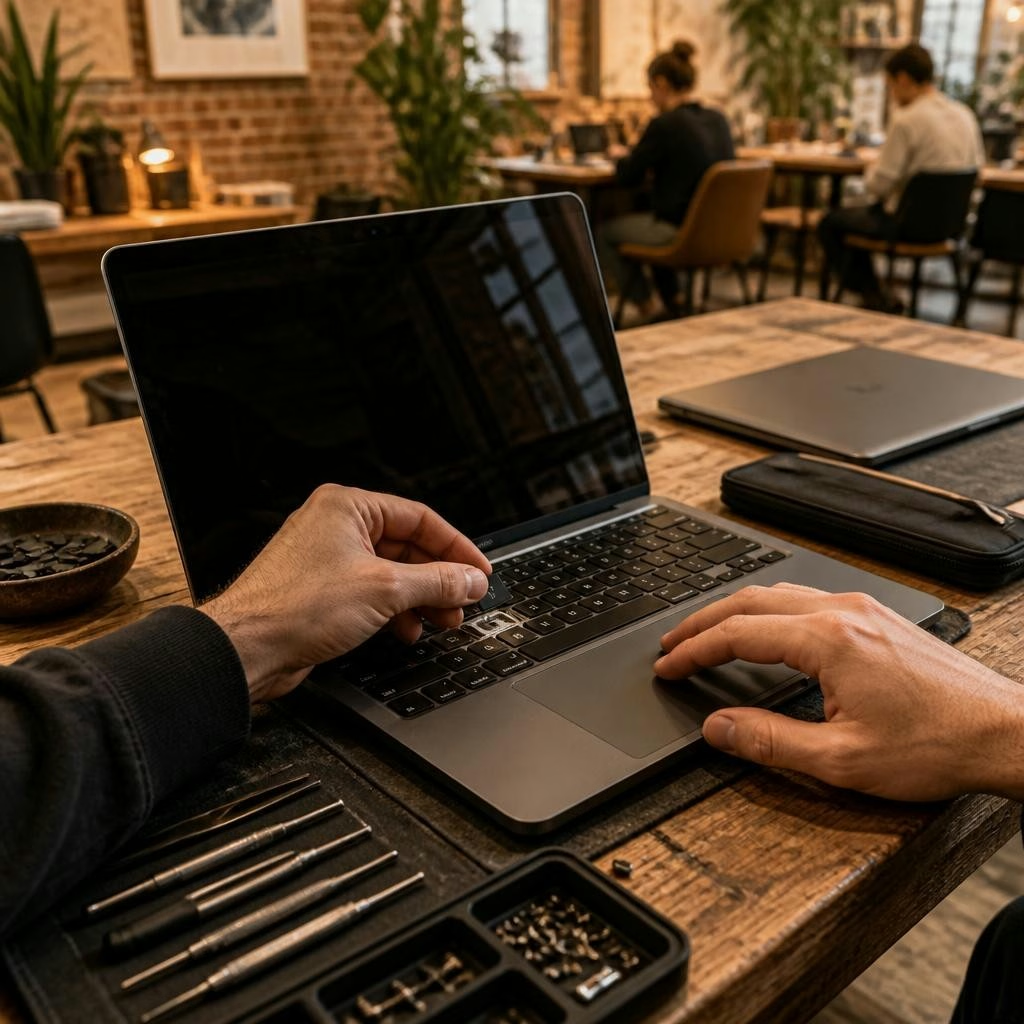
Why keyboards and trackpads fail
Key and trackpad problems can come from a few common sources: debris and dust under keys, liquid exposure, physical impact, internal wear over time, software glitches, or battery swelling that distorts the case. For creative students who use their MacBooks heavily, gradual wear and accidental spills are frequent culprits. Understanding whether the issue is software-related or hardware-related helps you decide the next step.
Fast checks to do before you panic
Start with simple diagnostics: restart your MacBook, install any pending macOS updates, and test the keyboard and trackpad in a fresh user account or safe mode to rule out software conflicts. Use the built-in Keyboard Viewer to see if keystrokes register, and try an external USB or Bluetooth keyboard and mouse/trackpad — if external devices work fine, the problem is likely built-in hardware or a driver-level issue.
When it’s likely a hardware fault
Signs that point to hardware include keys that are physically stuck, keys that register multiple presses for a single tap, a trackpad that never clicks or stops clicking after a short time, or visible case bulging from a swelling battery. Intermittent behavior (works sometimes, not others) can also signal loose internal connectors or failing components rather than a purely software issue.
Safe, do-it-yourself steps (what’s reasonable at home)
There are a few low-risk things you can try: power down and gently blow compressed air around affected keys, wipe the surface with a lint-free cloth lightly dampened with 70% isopropyl if there is sticky residue, and remove any external cases or covers. Always back up your data before attempting troubleshooting and avoid removing MacBook keycaps or opening the chassis unless you have experience — internal components are delicate and require specialist tools.
Software fixes worth trying first
Before booking a hardware repair, try software remedies: update macOS, check Accessibility settings (Sticky Keys, Mouse Keys), reset SMC and NVRAM/PRAM according to Apple’s instructions, and test in Safe Mode. These steps can resolve driver or power-management issues that affect the keyboard or trackpad responsiveness.
Local repair shops vs Apple service: what to weigh
Local repair shops in Coburg and nearby suburbs often provide faster turnaround and lower out‑of‑warranty costs, and can address specific hardware faults like individual key replacement, trackpad repairs, or top-case replacements. Apple or an Apple‑authorised service provider will typically use genuine Apple parts and maintain official service records, which matters if you need manufacturer-level support later. Consider the trade-offs: local shops may be quicker and more affordable, while Apple service can be more costly but offers manufacturer-backed parts and documentation.
What to expect from a trusted local repair
A reputable local technician will run a diagnosis, explain whether the issue is software or hardware, and outline the options (repair, part replacement, or further testing). Many customers in the Coburg area report fast, helpful MacBook repairs and clear communication about the problem and recommended fixes. If you choose local service, ask how diagnostics are handled and whether data backup is included or recommended before work begins.
Helpful questions to ask before you leave your MacBook
When you talk to a repair shop, ask: What is the diagnosis and its likely cause? Which parts will be used (new, refurbished, or third‑party)? What is the estimated turnaround time? Is data backup advised or supported? What kind of follow‑up support do you offer if the problem returns? Clear answers will help you compare quotes and make an informed choice.
How to prepare your MacBook for repair
Before handing over your device, make a current backup (Time Machine or other), sign out of iCloud if you’re comfortable doing so, remove external accessories and cases, and note your MacBook’s serial number and a clear description of the symptoms. Leaving a contact phone number and a brief list of recent incidents (spills, drops, software updates) helps technicians diagnose faster.
When repair may not be the best option
If repair estimates approach the cost of a replacement, or the machine has multiple failing components and significant battery swelling, replacement can be more practical. Also consider your workflow: if downtime would seriously impact study or creative deadlines, factor in turnaround times when deciding between local repair and Apple service.
Local support in Coburg — what Zee Mobi Solutions offers
For students and creatives near Coburg and Brunswick, Zee Mobi Solutions provides MacBook repairs that include keyboard and trackpad fault diagnosis and repair. Located at 375 Sydney Road, Coburg, the shop specialises in MacBook and laptop work and is known locally for helpful customer service and quick turnaround on many repairs. If you’d like a diagnosis, bring details about the issue and any recent incidents; technicians can advise whether a software fix, part replacement, or further evaluation is the right next step.
Article by
Zee Mobi Solutions - Phone Repair Coburg
Zee Mobi Solutions is your trusted destination for expert mobile phone, MacBook, and laptop repairs in Coburg. We specialise in fast, reliable, and affordable repair services for all major brands, including Apple, Samsung, and more. Whether it’s a cracked screen, battery replacement, water damage, or software issues, our skilled technicians have you covered. We use high-quality parts to ensure lasting performance and customer satisfaction. Conveniently located in Coburg, we pride ourselves on quick turnaround times and exceptional service. Visit Zee Mobi Solutions today for professional repairs and get your device back in top shape!