MacBook Not Charging or Turning On? A Step‑by‑Step Guide for Coburg MacBook Owners
Practical checks Coburg MacBook users can try at home for charging and power problems, clear signs to bring your machine to a professional, and what a local repair shop like Zee Mobi Solutions will typically inspect and repair.
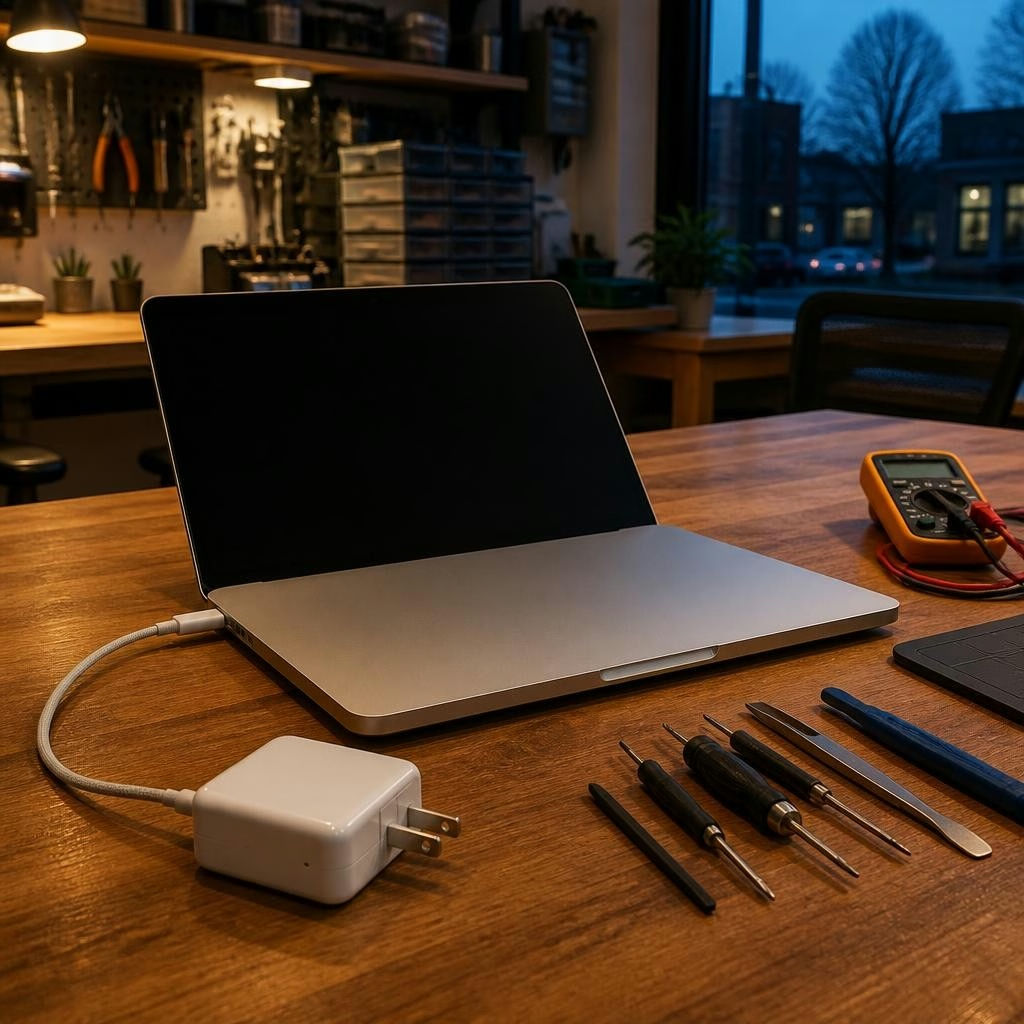
Why this guide matters
A MacBook that won’t charge or won’t power on can be caused by many different issues — from a simple charger fault to a serious hardware problem. This guide gives Coburg MacBook owners practical, safe checks to try at home, explains when to stop and bring the device to a professional, and outlines the common tests and repairs a local shop will perform.
Common causes of charging and power failures
Some of the most frequent reasons a MacBook won’t charge or won’t turn on are: a faulty charger, damaged cable or power outlet; debris or damage in the charging port; depleted or failing battery cells; software or firmware faults; and liquid or physical damage affecting internal components. In some cases the problem is the charging circuitry or logic board and requires bench diagnostics.
Safety and preparation before you start
Before attempting any checks, work on a flat, dry surface and unplug accessories. If the battery is noticeably swollen, stop immediately and do not charge the device — swollen batteries are a safety hazard and need professional handling. If your MacBook occasionally turns on long enough for backups, save important files before further testing.
Step 1 — quick power and charger checks
Try these basic checks first: confirm the wall outlet works by testing another device; inspect the charger and cable for frays, kinks or bent pins; try a different compatible charger if available; clean the charging port gently with a soft brush or compressed air to remove dust or lint; and, for MagSafe models, check the LED on the adapter if present. If a different known-good charger powers the MacBook, the original charger or cable is likely at fault.
Step 2 — simple resets and software checks
A software or firmware reset can resolve some power issues. For Intel-based Macs you can try an SMC reset (this affects low-level power functions) and an NVRAM/PRAM reset for certain boot issues; for Apple silicon Macs, a simple shutdown and restart is usually the first step since SMC is integrated. You can also try booting into Safe Mode to rule out third‑party software conflicts. If you’re unsure which process applies to your model, check Apple’s support pages or ask a technician.
Step 3 — when the MacBook powers but won’t boot
If your MacBook shows signs of power (lights, fan, or a charging indicator) but doesn’t boot to macOS, try a startup key combination to access Recovery Mode or Safe Mode (model-dependent). From Recovery Mode you can run Disk Utility first to check the drive, or reinstall macOS if necessary. If you suspect a failing SSD or persistent boot errors, avoid repeated installs and seek professional diagnostics to protect your data.
When to stop and bring your MacBook to Zee Mobi Solutions
If basic checks don’t restore power, or if you detect swelling, burn smell, visible corrosion from liquid exposure, physical damage to the chassis or ports, or persistent failures after resets, it’s time to see a technician. Zee Mobi Solutions in Coburg specialises in MacBook repairs and, according to local customers, provides helpful, reliable service for charging and power problems. Bringing the machine to a shop prevents accidental damage during DIY attempts and allows trained technicians to perform safer diagnostics.
What a repair shop will test and repair
A technician will run a structured diagnostic sequence: confirm the charger and cable, inspect the charging port and connectors, check battery health and charging circuitry via diagnostic tools, perform software checks, and test internal components if needed. Common repairs for charging/power faults include replacing a faulty adapter or cable, replacing a depleted battery, repairing or replacing a damaged charging port, and addressing related software or firmware issues. If initial tests point to deeper hardware faults, a technician can advise on further options.
What to bring and how to prepare for a shop visit
Bring your MacBook and the charger you normally use, describe the symptoms (what you saw, when it started, whether there was a spill or a fall), and mention any troubleshooting you’ve already tried. If possible, back up your data before the visit; if you can’t, tell the technician so they can prioritise data‑safe diagnostics. Zee Mobi Solutions is located at 375 Sydney Road, Coburg, and serves Coburg and nearby suburbs — customers often report fast, friendly service for MacBook repairs.
Turnaround, costs and aftercare tips
Many simple issues (charger replacement, battery swap, port cleaning) can be resolved quickly, while more complex board-level problems require longer diagnostics and repair time. Reviews from local customers highlight quick turnaround and reasonable pricing for common repairs, but every repair is different — ask the shop for an estimate and an explanation of parts quality and any warranty offered on the work. After a repair, test your MacBook thoroughly at the shop if possible, and keep receipts and diagnostic notes in case follow-up is needed.
Customer review


Article by
Zee Mobi Solutions - Phone Repair Coburg
Zee Mobi Solutions is your trusted destination for expert mobile phone, MacBook, and laptop repairs in Coburg. We specialise in fast, reliable, and affordable repair services for all major brands, including Apple, Samsung, and more. Whether it’s a cracked screen, battery replacement, water damage, or software issues, our skilled technicians have you covered. We use high-quality parts to ensure lasting performance and customer satisfaction. Conveniently located in Coburg, we pride ourselves on quick turnaround times and exceptional service. Visit Zee Mobi Solutions today for professional repairs and get your device back in top shape!