New iPad for School in Melbourne’s North: Protection and Setup Tips to Avoid Early Repairs
Practical, parent-focused steps for Coburg, Fawkner and Preston families to set up a new iPad for school, protect it from drops and port damage, and reduce the chance of needing repairs in the first year.
Why a careful first week matters
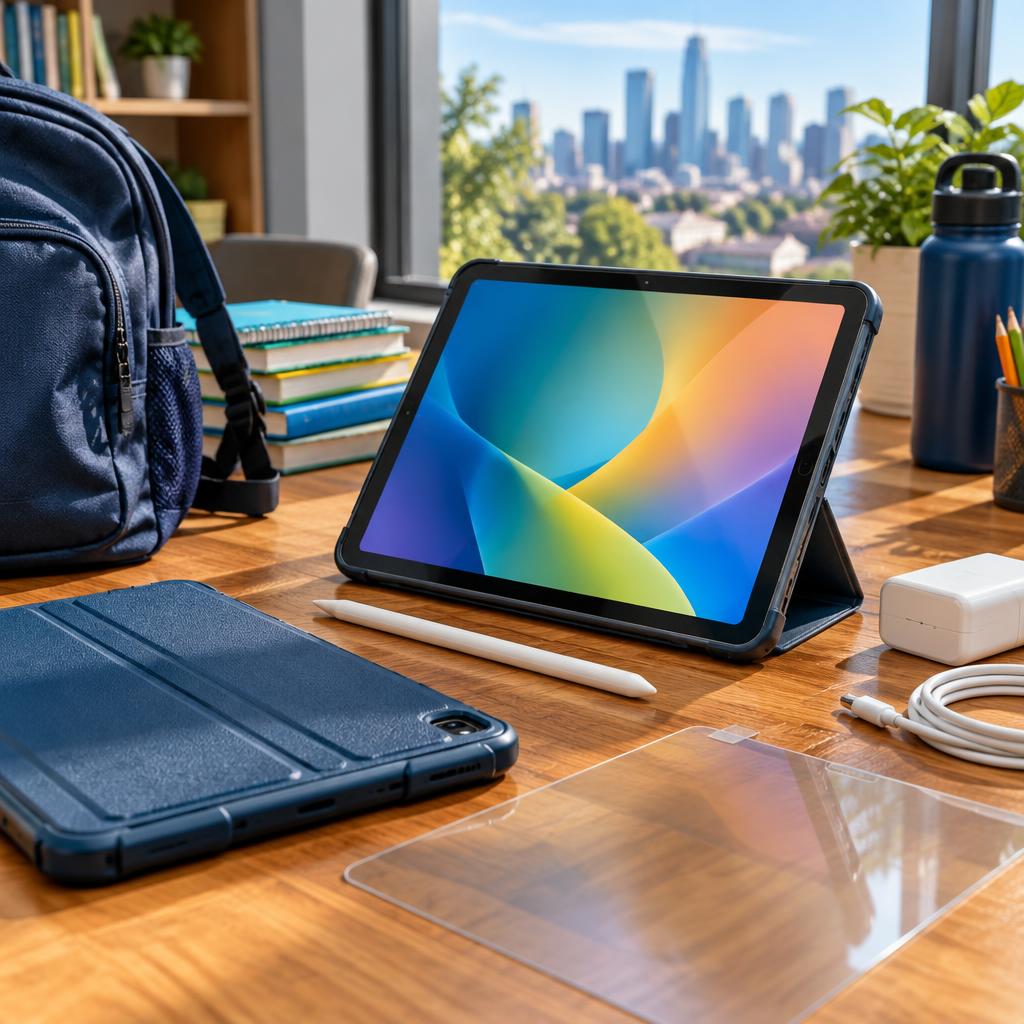
A new iPad is a big help for school, but the way you set it up and protect it in the first few days strongly affects how likely it is to need repairs later. Small choices—a protective case, a screen protector, a secure Apple ID and a simple charging routine—can prevent the most common issues like cracked screens, damaged charging ports and accidental software problems. These practical steps are especially useful for families in Coburg, Fawkner, Preston and nearby suburbs.
Unboxing and immediate setup steps
When you first power on the device, follow Apple’s setup prompts to sign in with or create an Apple ID, enable iCloud backup, and set a strong passcode. Turn on iCloud Backup so photos, notes and school files are routinely backed up; that makes recovery easier if a device is lost or needs repair. Also install the latest iPadOS updates before adding school apps—updates often include fixes and security patches that improve performance and stability.
Configure kid‑friendly settings
Use Screen Time to set daily limits for apps and schedule downtime for study and sleep. Enable content and privacy restrictions to block explicit content and restrict app installs or in‑app purchases. If your family uses shared devices, set up separate user accounts where possible or use Family Sharing to manage purchases and location sharing. These settings reduce accidental changes and keep the iPad focused on learning.
Network and software safety
Connect the iPad only to trusted Wi‑Fi networks and avoid public, unsecured hotspots for schoolwork. Enable automatic app updates and turn on Find My iPad so you can locate or remotely lock the device if it’s lost. For younger children, consider using a simplified browser or a managed profile if your school provides one—this helps prevent accidental downloads or exposure to unsafe websites.
Choosing the right case
A good case is the single best defence against drops. Look for cases with shock‑absorbing corners, a raised bezel around the screen, and a secure fit so the iPad won’t slip out. For younger students choose rugged or kid‑friendly designs with thicker edges and easy‑to‑grip textures; for older students a slim folio with a magnetic cover or a keyboard folio offers extra screen protection and functionality. Make sure the case allows access to the camera and charging port without forcing cables at awkward angles.
Picking and applying a screen protector
Tempered glass protectors provide the best scratch and impact resistance and preserve touch sensitivity; PET or TPU films are lighter and can help reduce glare. Opt for a protector with full‑coverage or edge‑to‑edge fit for better protection, and check for an oleophobic coating to resist fingerprints. Installation technique matters: clean the screen thoroughly, align carefully, and press out bubbles. If you prefer, have a reputable technician apply the protector to avoid dust and alignment issues.
Charging, cables and port care
Use MFi‑certified or manufacturer‑recommended chargers and cables to reduce wear on the charging port. Teach kids to plug and unplug straight instead of at an angle, and avoid forcing connectors. If the iPad will be stored in a school bag, keep cables loose in a small pouch rather than wrapped tightly around the device. Regularly inspect cables for frays—replacing a damaged cable is cheaper and safer than repairing a bent or damaged port.
Transporting and storing the iPad at school
Choose a backpack or satchel with a padded compartment and a separate pocket for chargers and accessories. A slim padded sleeve inside the bag adds an extra layer of protection. Encourage children to place the iPad in the same compartment every time and to keep it away from heavy items like water bottles or sports gear. When not in use, store the iPad in a safe, dry place to reduce the risk of liquid damage or pressure on the screen.
What to do if damage happens
If the screen cracks, the port becomes loose, or the device behaves oddly, stop using it and back up data if possible. Many common repairs—from screen and battery replacements to charging‑port fixes—are handled quickly by local repair shops. Local reviews consistently highlight fast turnaround and helpful service at Coburg repair specialists, which can make getting a device fixed less stressful. Always ask a repair shop about part quality, turnaround time and data safety before agreeing to work.
Checking warranty, insurance and school policies
Before you buy or repair, check whether the iPad is covered by AppleCare, your home contents insurance or any school device program. Policies differ on accidental damage and provision of loan devices during repairs. Knowing coverage in advance helps you decide whether to pursue a warranty repair, an authorised service option, or a local repair shop with fast service and reasonable pricing.
A quick parent checklist
Before sending an iPad to school: 1) Sign in to Apple ID and enable iCloud Backup; 2) Install the latest iPadOS updates; 3) Configure Screen Time and content restrictions; 4) Fit a shock‑absorbing case and a tempered glass protector; 5) Use a certified charger and keep a spare cable at home; 6) Place the iPad in a padded compartment when travelling; 7) Note local repair options and keep contact details handy. Following these steps will cut the chance of early damage and make recovery faster if something goes wrong.
Where to get help locally
If you need advice, accessory fitting or repairs in Melbourne’s north, consider an experienced local repair shop on Sydney Road in Coburg. Local customers regularly praise fast, helpful service and reasonable pricing for phone and laptop repairs—qualities that are useful when a school device needs quick attention. Keep repair contact details in your phone so you can act quickly and minimise downtime for schoolwork.
Article by
Zee Mobi Solutions - Phone Repair Coburg
Zee Mobi Solutions is your trusted destination for expert mobile phone, MacBook, and laptop repairs in Coburg. We specialise in fast, reliable, and affordable repair services for all major brands, including Apple, Samsung, and more. Whether it’s a cracked screen, battery replacement, water damage, or software issues, our skilled technicians have you covered. We use high-quality parts to ensure lasting performance and customer satisfaction. Conveniently located in Coburg, we pride ourselves on quick turnaround times and exceptional service. Visit Zee Mobi Solutions today for professional repairs and get your device back in top shape!