Why Your Laptop Microphone or Camera Stops Working: A Coburg Troubleshooting Guide
Practical, step-by-step troubleshooting for remote workers and students in Coburg, Preston and Reservoir whose laptop mic or webcam stops working, plus guidance on when to bring your device to Zee Mobi Solutions for diagnosis and repair.
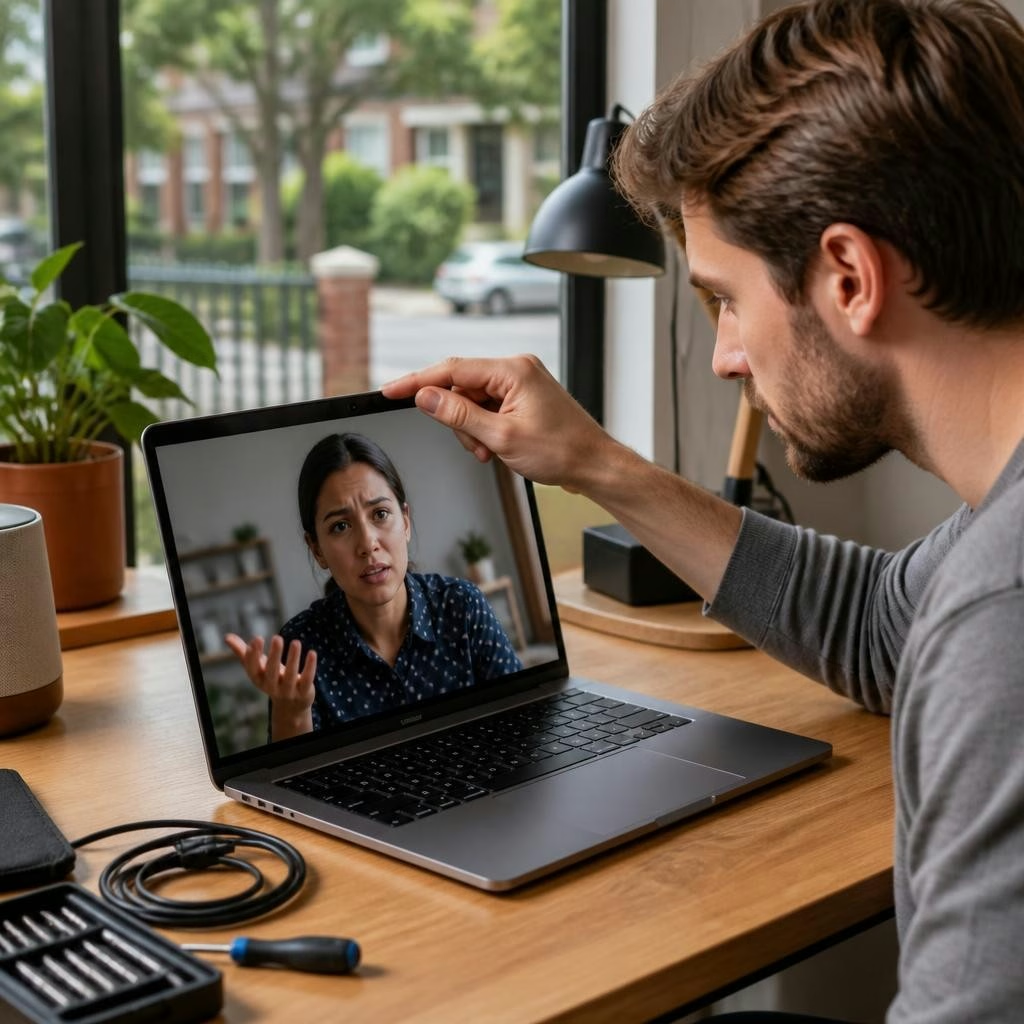
Quick overview: common reasons microphones and cameras fail
If your laptop microphone or webcam suddenly stops working during a video call, the cause is usually one of a few common issues: app permissions, incorrect input/output selection, missing or outdated drivers, temporary software glitches, or physical hardware faults (loose cable, dust, or water damage). Network or browser issues can also make a camera appear to fail when the device itself is fine. This guide helps you rule out simple software and settings problems first, then explains when a hardware repair visit makes sense.
A 60-second checklist to try before the call ends
Before you end a meeting or reboot in frustration, run this quick checklist: 1) Make sure the app isn’t muted and the call host hasn’t muted you. 2) Confirm the correct microphone and camera are selected in the app’s settings. 3) Check your laptop’s physical mute button, privacy shutter or keyboard camera key. 4) Test the device in another app or the built-in Camera/Voice Recorder. 5) Restart the app (or the browser tab) and, if needed, the laptop. These steps solve many interruptions in minutes.
Checking app permissions and browser settings
Modern operating systems require apps and browsers to have permission to use the mic and camera. On Windows and macOS, open Privacy or Security settings to confirm the app (Zoom, Teams, Chrome, etc.) has access. If you’re using a browser, check the site permissions for camera and microphone and make sure the correct device is chosen in the website’s prompt. Clearing a browser cache or trying a different browser can also reveal if the problem is browser-related.
Camera troubleshooting steps
To isolate camera problems: 1) Open the built-in Camera app (Windows) or Photo Booth (Mac) to see if the camera is detected. 2) If it’s not detected, check Device Manager (Windows) or System Report (Mac) for the camera device. 3) Update or reinstall the camera driver or camera-related system update. 4) Disconnect any external webcams and test again. 5) Inspect for a physical cover or dust on the lens and check for signs of damage. If the camera only fails in one application, focus on that app’s settings.
Microphone troubleshooting steps
For microphone issues: 1) Open Sound or Audio settings and confirm the correct input device is selected and not muted. 2) Test levels in Sound Control Panel (Windows) or Sound preferences (Mac) and speak to watch the input meter. 3) Temporarily disable audio enhancements or automatic gain controls which can sometimes cause problems. 4) Try a different app or a simple voice recorder to verify basic capture. 5) If an external headset or USB mic is connected, try the laptop’s built-in mic and vice versa to narrow down the issue.
Drivers, system updates and software fixes
Outdated or corrupted drivers and system updates are frequent culprits. On Windows, check Windows Update and the device manufacturer’s site for camera and audio drivers; consider rolling back a recent driver if the problem started after an update. On Mac, keeping macOS up to date usually ensures the latest camera and audio firmware. If drivers are current but problems persist, a clean reinstall of the driver or a full OS update can resolve deeper software conflicts.
Signs the problem is hardware-related
Hardware issues typically show persistent or intermittent failures across multiple apps and after software troubleshooting. Signs include the camera or mic not being detected at all, poor or crackling audio from the mic, physical damage near the camera or microphone openings, or problems after liquid exposure. If your device recently suffered a drop, spill, or was exposed to high humidity, the chance of hardware repair is higher.
When to bring your laptop to Zee Mobi Solutions
If basic checks, permission changes and driver updates don’t restore audio or video, a professional diagnostic can identify whether the issue is a replaceable module, connector, or deeper board-level fault. Zee Mobi Solutions in Coburg offers laptop and MacBook repairs and can run a focused diagnostic to pinpoint the cause. Many customers report fast, helpful service and quick fixes for laptop audio and app problems; one local review specifically mentioned that a laptop microphone issue and related app problems were diagnosed and resolved promptly by the shop’s professional staff.
What to bring and what to expect at your appointment
When you visit, bring your laptop and a description of the problem (when it happens, any recent drops or updates, whether the issue is present on battery or only when plugged in). Back up important data if possible before dropping off the device. The technician will typically run a diagnostic to separate software issues from hardware faults and explain repair options. Zee Mobi Solutions lists laptop and MacBook repairs among their services and uses quality parts for hardware replacements when needed.
Preventive tips to avoid future interruptions
Run regular system updates, and test microphone and camera before important meetings. Keep vents, ports and camera openings free from dust, avoid covering the webcam with heavy tape that can leave residue, and shut down or restart occasionally to clear software glitches. If you rely on video calls every day, consider keeping a small external USB webcam or headset as a backup. For persistent or recurring hardware issues, schedule a professional check‑up at Zee Mobi Solutions located at 375 Sydney Road, Coburg — they serve nearby areas including Preston and Reservoir and can advise on durable fixes.
Customer review


Article by
Zee Mobi Solutions - Phone Repair Coburg
Zee Mobi Solutions is your trusted destination for expert mobile phone, MacBook, and laptop repairs in Coburg. We specialise in fast, reliable, and affordable repair services for all major brands, including Apple, Samsung, and more. Whether it’s a cracked screen, battery replacement, water damage, or software issues, our skilled technicians have you covered. We use high-quality parts to ensure lasting performance and customer satisfaction. Conveniently located in Coburg, we pride ourselves on quick turnaround times and exceptional service. Visit Zee Mobi Solutions today for professional repairs and get your device back in top shape!